Delegation
In information sharing, the privacy of the reporting organization can be important in cases such as:
- when an incident should not be linked to a potential victim.
- when you want to avoid linking a specific organization to the shared information.
MISP includes a delegation feature that lets another organization publish an event on your behalf and removes the direct link between the shared information and your organization. If you want to publish an event without your organization being tied to it, you can delegate publication to another organization. That organization becomes the owner of the event. You can delegate only to local target organizations, not to remote ones.
You need a role with Delegation access to delegate an event.
You must also enable the MISP.delegation parameter on your instance.
Send a delegation request
To do this, you first need to set the event distribution to Your organization only.  Otherwise, the delegation option will not be available.
The “distribution must be Your organization only” restriction is lifted if the site administrator has enabled the MISP.unpublishedprivate setting on the instance. When that setting is on, an event with any distribution level can be delegated.
An event can only have one pending delegation request at a time. If you need to change the target organization or the requested distribution, discard the existing request first, then create a new one.
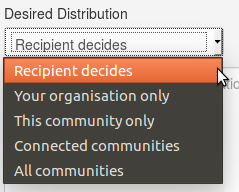
When you click Delegate Publishing, a pop-up appears. 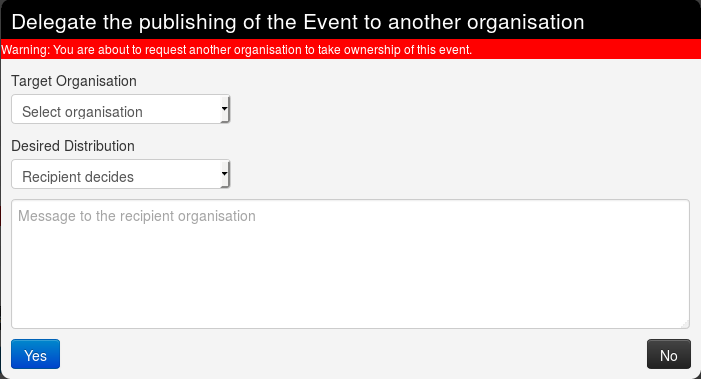 Here you can choose the following options: - The organization to which you want to delegate the event. In this example, we ask Setec Astronomy to publish the event for us. - The distribution option you would like to request for the event. You can let the recipient organization choose if you do not mind. In this example, we request All communities, but this is only a suggestion and the recipient can still change the distribution later.
  - An optional free-form message to the recipient organization.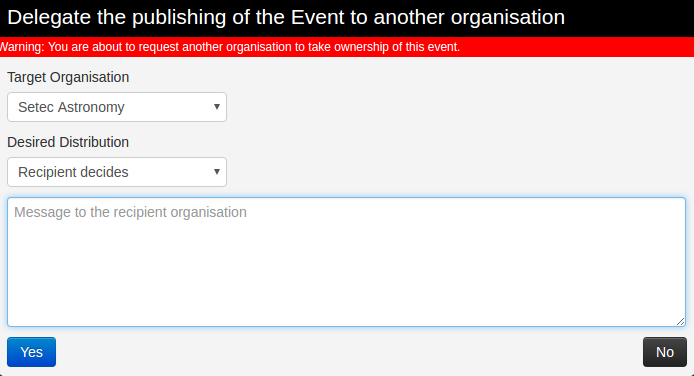
Once the request is sent, a message appears on the event to remind you that the request is pending.  You can also view more details by clicking View request details.
 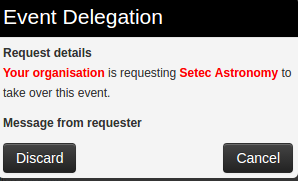 You can discard the request yourself by using either this pop-up or the link in the left-side menu.
Both the requesting and the recipient organization can review pending delegations at any time from the top navigation bar under Global Actions → View delegation requests (labelled Delegation Requests), which lists every request awaiting action.
Answer a delegation request
As the recipient organization, you receive the delegation request. You are notified by a red envelope in the upper-right corner of the screen.  Open Global Actions → View delegation requests to see every event that other organizations want to delegate to your organization. In this example, there is a single request from Acme Factory.
 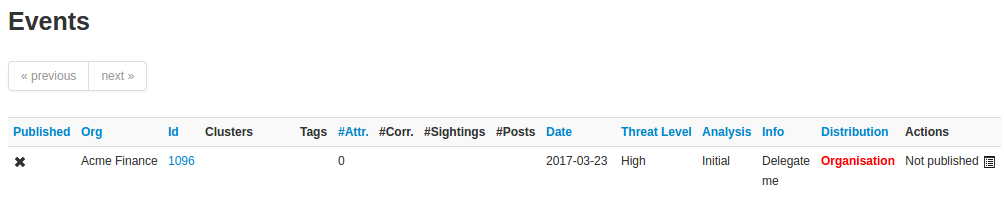 Opening the event shows its metadata, including a banner about the pending delegation.
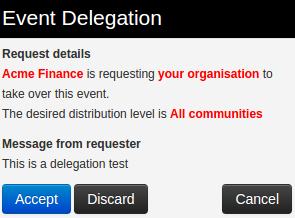
 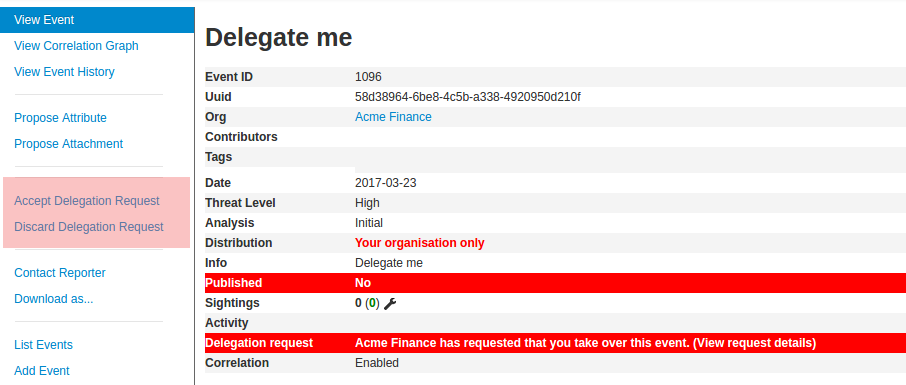 Click View request details to see the full request — the requesting organization, the distribution level it suggested, and its message.
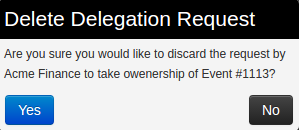
  If your role includes publishing rights, you can manage the delegation request by using one of the two links in the left-side menu. You can either discard it:
  Or accept it:
 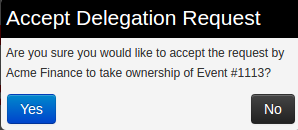 Note that the distribution requested by the original sender is not applied automatically. If the setting is not changed, the event remains distributed only to your own organization.