Galaxies
Galaxies are MISP’s way of attaching rich, structured knowledge objects — clusters — to events and attributes. A cluster is a named entry (a threat actor, a malware family, an ATT&CK technique, a sector, a country, …) carrying a description, synonyms, and a set of key/value metadata. Where a plain tag gives you one label and one colour, a galaxy cluster gives you a whole reusable object with context and relationships.
MISP ships with a large library of community-maintained galaxies (from misp-galaxy, and drawing on standards such as ATT&CK, STIX and others). You can use these default clusters as they are, and — since “Galaxy 2.0” — create, edit, fork and relate your own clusters directly in the web interface. Each cluster carries a MISP distribution level, so custom knowledge can be kept local or shared as widely as you like.
Under the hood a galaxy cluster is stored as a tag of the form misp-galaxy:<type>="<uuid>", which is what actually gets attached to an event or attribute — but the UI presents it as a first-class object rather than a flat tag. For the difference between galaxies and taxonomy tags, see the Taxonomies chapter.
Managing galaxies in the UI
Open Galaxies from the top menu to see every galaxy on the instance.

The index lists each galaxy with its icon, name, version, namespace and description, and shows whether it is enabled and whether it is local only. Use the All / Enabled / Disabled tabs and the search box to filter.
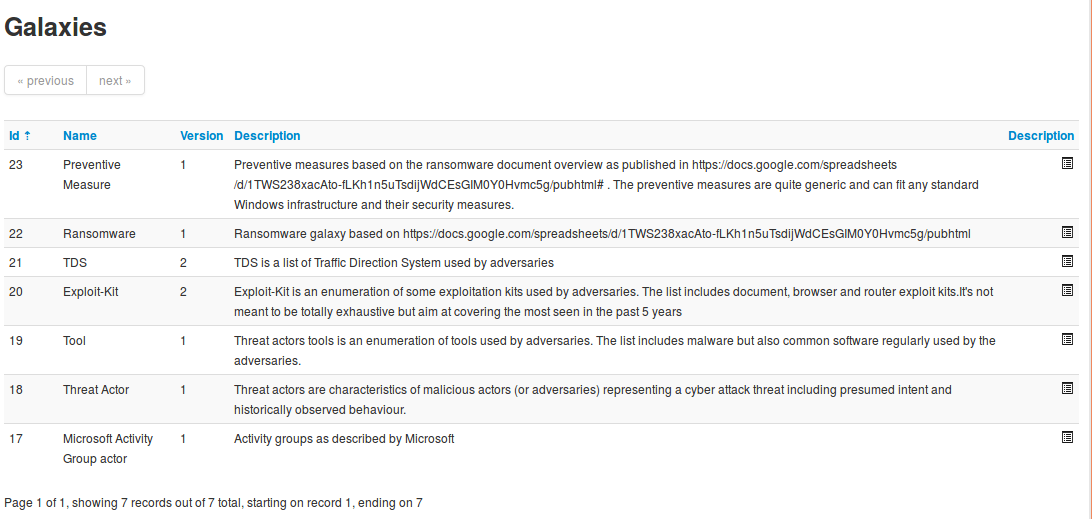
Each galaxy can be opened with the View action. The galaxy page shows its metadata (namespace, UUID, distribution, owner and creator organisation, whether it is a default galaxy, and its kill-chain layout for matrix galaxies) and, below it, the list of its clusters.
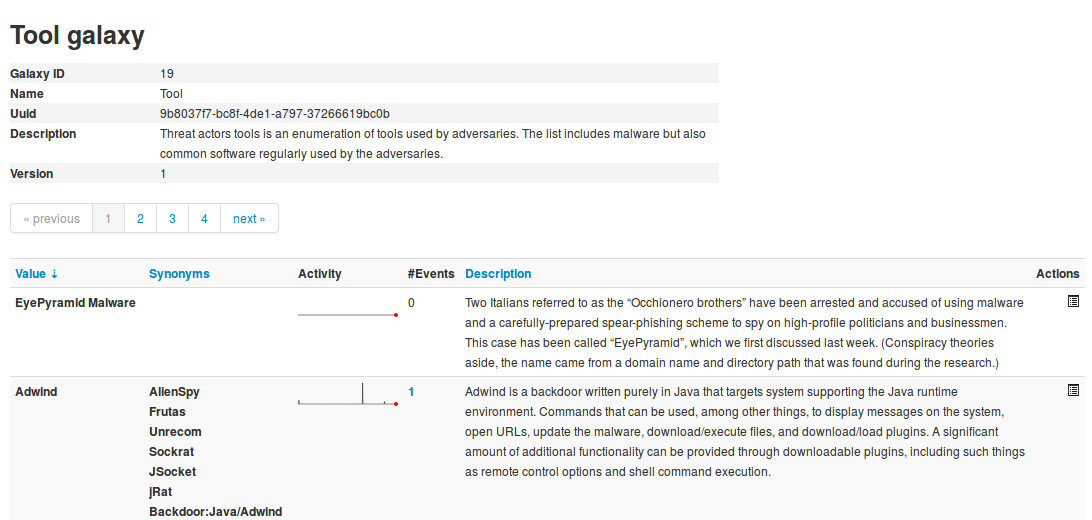
The cluster list has its own context tabs — All, Default (shipped clusters), Custom (clusters created on this instance), My Clusters, Deleted, View Fork Tree and View Galaxy Relationships — and, for each cluster, an activity sparkline (from sightings) alongside the number of events and relationships it appears in.
Enabling, disabling and updating galaxies
Site admins can enable or disable a whole galaxy from the index (a disabled galaxy is hidden from the attach picker). The bundled galaxy library is refreshed from the misp-galaxy files on disk with the side-menu actions:
- Update Galaxies — reimport all galaxies from the library, adding new default clusters and relationships.
- Force Update Galaxies — drop and reimport, useful when a definition changed in place.
- Wipe Default Galaxy Clusters — remove all shipped clusters (custom clusters are kept).
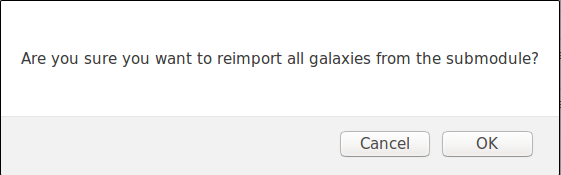
The same reimport is available on the command line with cake Admin updateGalaxies [force], which is convenient for a cron job (see the administration chapter). The library files themselves are updated by pulling the misp-galaxy submodule (part of the standard git submodule update during a MISP upgrade).
Matrix galaxies
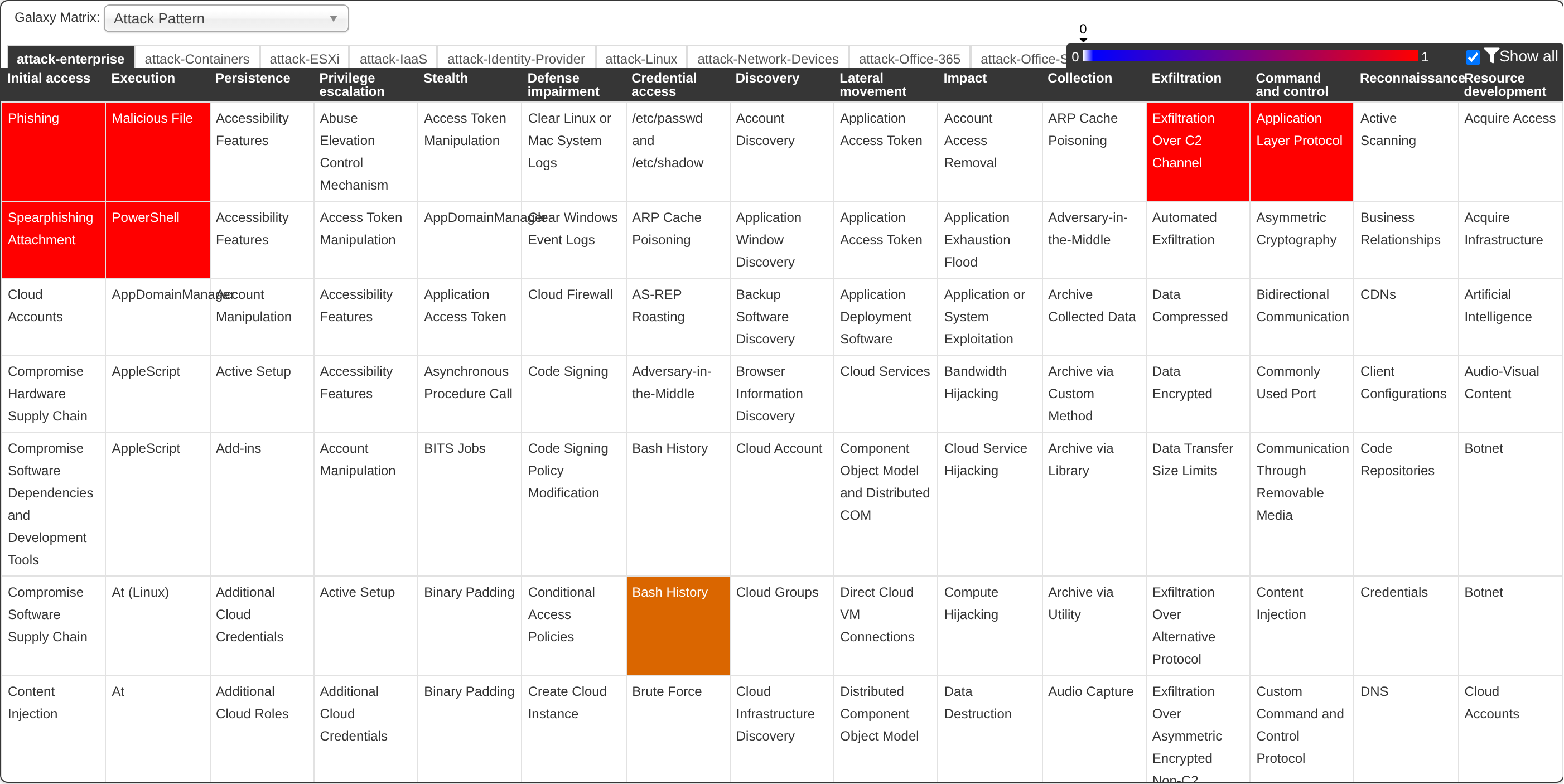
Galaxies that define a kill_chain_order — most notably the MITRE ATT&CK galaxies — are rendered as an interactive matrix, with the techniques present in an event highlighted as a heat-map across the tactics.
Using galaxies in events and attributes
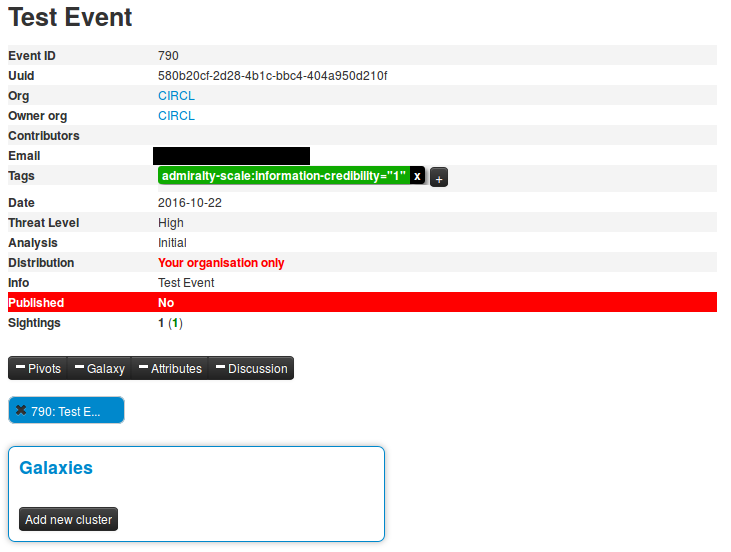
Galaxy clusters are attached from the Galaxies panel on an event (or on an individual attribute). The panel offers two add buttons: Add new cluster (global — the cluster is shared and synchronised with the event) and Add new local cluster (the attachment stays on your instance only). Local attachments are useful for adding your own context to data you intend to share without leaking that context.
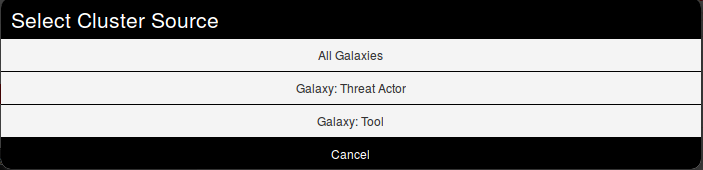
Clicking either button opens a picker where you first choose a galaxy (or search across all of them), then select one or more clusters to attach.
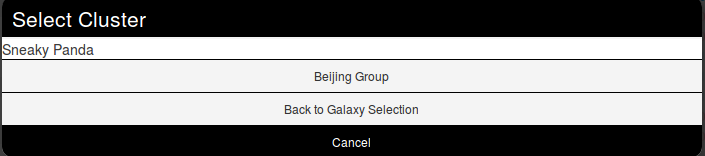
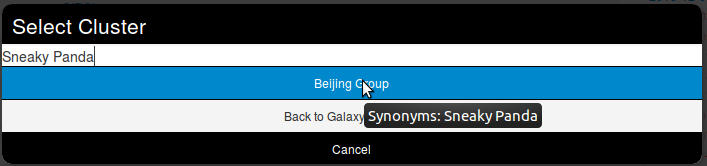
Clusters carry synonyms, so if you cannot find an actor or family under the name you know, search for it — an alias will lead you to the canonical cluster. In the example below, searching for “Sneaky Panda” surfaces the cluster under its primary name.
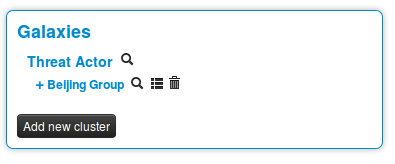
Once attached, each cluster in the Galaxies panel offers inline actions: a magnifier to view the cluster, an icon to list the events that use it, a control to modify the tag relationship, and a trash icon to detach it. A globe or user icon indicates whether the attachment is global or local.
Creating your own galaxy clusters (Galaxy 2.0)
Users with the Galaxy Editor role permission (or site admins) can create custom clusters directly in the UI. Default (shipped) clusters are read-only; your custom clusters are owned by your organisation and are fully editable.
From a galaxy’s view, use Add Cluster to open the cluster form:
- Name — the cluster’s value (for example the actor or family name).
- Distribution / Sharing Group — who the cluster is shared with, using the standard MISP distribution levels (Your organisation only → All communities, or a sharing group).
- Description — free text describing the cluster.
- Authors — a JSON array or comma-separated list of authors.
- Source — where the information comes from.
- Galaxy Cluster Elements — the key/value metadata (synonyms, references, external IDs, and any other fields). You can paste a JSON array of
{key, value}objects, or use the Toggle UI button to fill in the key/value pairs through a form.
You can also create an entirely new custom galaxy to hold your clusters with Add Custom Galaxy (from the galaxies index side menu) — for example a galaxy specific to your organisation’s internal taxonomy of adversaries.
Publishing custom clusters
A custom cluster must be published before it can be attached to data or synchronised — an unpublished cluster is hidden from the attach picker, and the cluster view warns you that users cannot yet use it. Publishing requires both the Galaxy Editor and Publish permissions. Note that editing a cluster (or changing one of its relationships) automatically un-publishes it, so you republish when your changes are ready. Published clusters are pushed to the sync servers you are connected to, according to their distribution level.
Forking a cluster
Sometimes you want to build on a shipped cluster without losing the link to the original — for example to add your own metadata or relationships to a MITRE technique. Forking creates an editable copy of any cluster in the same galaxy: use the Fork action on a cluster row (or Fork Cluster in the cluster menu).
The fork is a new, independent custom cluster owned by your organisation, with its own UUID, but it records the parent it was forked from. The cluster view shows Forked From / Forked By links, and when the parent later advances to a newer version you get a New version available banner with the option to pull the parent’s changes into your fork.
Cluster relationships
Clusters can be linked to one another to build a graph of related knowledge — for example marking one actor as is-similar to another, or a malware family as used-by an actor. A relationship connects a source cluster to a target cluster with a relationship type (a free-form string; the picker suggests existing types such as is-similar), can carry its own tags (for example estimative-language or false-positive tags to qualify the link), and has its own distribution level.
Add relationships from a cluster’s View Galaxy Relationships panel using the inline Add relationship form (the source is pre-filled; pick a type, choose the target cluster, and optionally add tags), or from the dedicated relationship add form. The panel offers both a tree and a tabular view, with an option to include inbound relations. Because a relationship is part of the cluster’s shared data, adding, editing or deleting one un-publishes the source cluster until you republish.
Blocklisting galaxy clusters
If you want to keep a specific cluster from ever being captured or synchronised onto your instance, add its UUID to the galaxy cluster blocklist (List Cluster Blocklists in the galaxies menu; hard-deleting a cluster also adds it to the blocklist). See Blocklists in the administration chapter.
Available galaxies
The set of bundled galaxies changes with every misp-galaxy release, so this chapter does not reproduce the list. To see exactly what is available on your instance, browse Galaxies in the UI; for the authoritative, always-current catalogue see the misp-galaxy repository and the MISP galaxy page.